
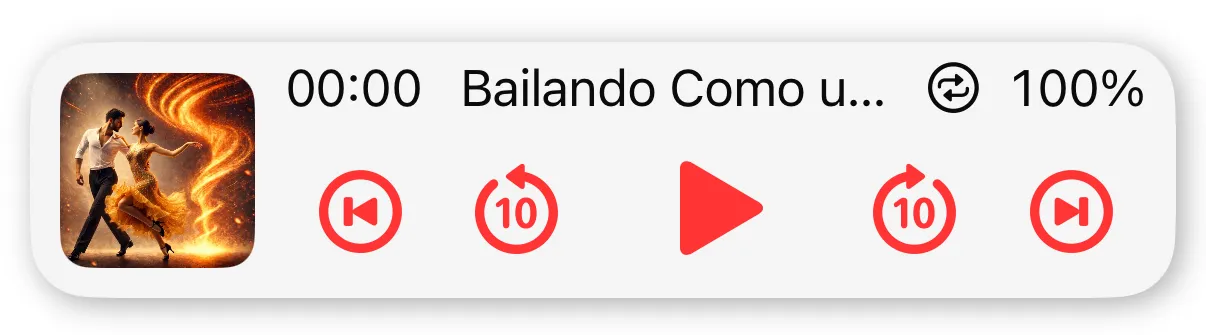
The Floating Player at a glance
The Floating Player remains visible in most views. It shows the current playback time or countdown, the track title or section name, whether Repeat is enabled, and the current playback speed. You can also pause and resume playback directly from the player.
When a choreography is divided into sections, the Back and Forward controls let you move between them. The player occupies only a small part of the screen, so choreographies, sections, notes, and videos remain accessible in the current view.
When you quit the app, Choreo Player saves the current playback position and settings. The next time you open it, you can continue where you left off.
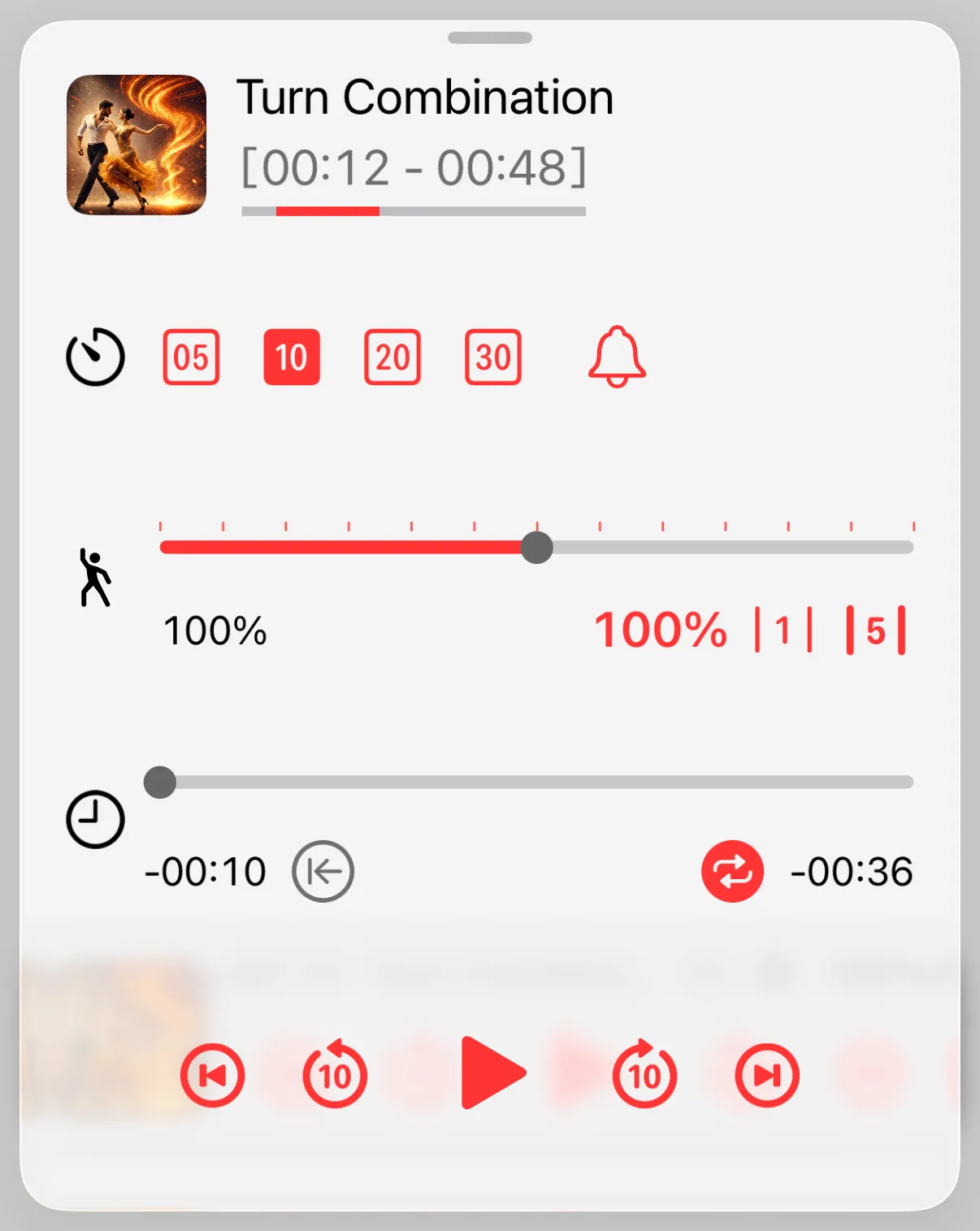
Expanded controls for practice
At the top, the expanded player shows the current track. When a section is selected, its name and time range appear together with a bar indicating where the section lies within the track.
The start delay is set in the next row. In this example, a ten-second countdown is selected. Playback speed can be adjusted with the slider below, and the scale can use steps of either one or five percentage points.
During playback, the section button creates a new section at the current playback position and saves it immediately. In the image, the button is disabled because the start delay is set to ten seconds. Repeat can also be enabled in this row for the current track or section.
The controls at the bottom provide play and pause, ten-second jumps, and navigation between sections. When you move to another section, the information at the top updates immediately.
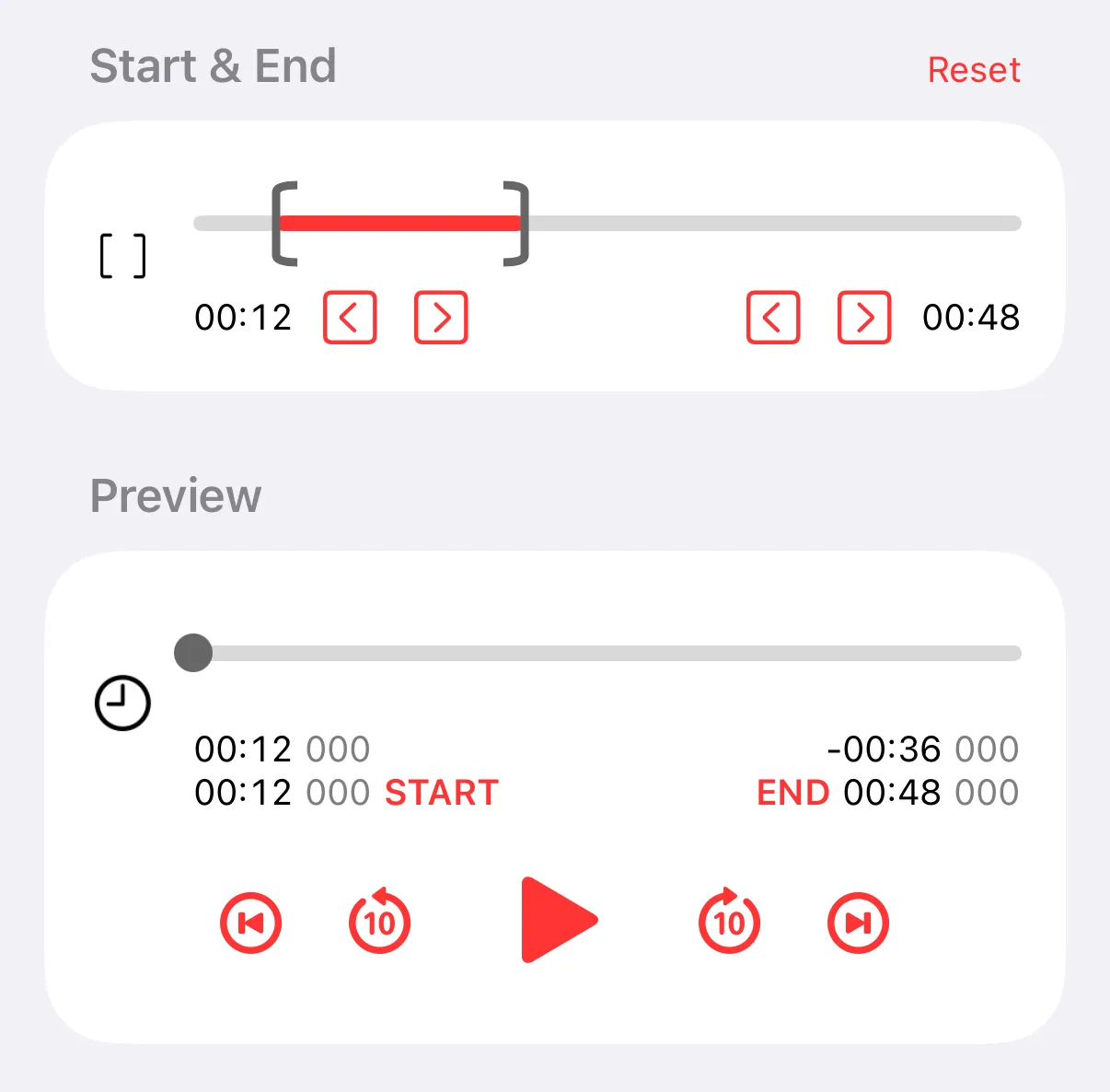
Editing a section in detail
Sections can be created using the “Add section” menu item. The title, information, videos, and interval can be set before saving. A section can also be added at the current playback position from the expanded player controls while a track is playing. Sections added this way are saved immediately with an automatically generated title and can be edited afterward.
The start and end of the section can be set with the range slider. The arrow controls adjust either boundary independently, allowing the interval to be positioned more precisely.
The preview player plays back the selected interval within the editing screen. Use it to check the start and end points and adjust them until the section contains the part you want.